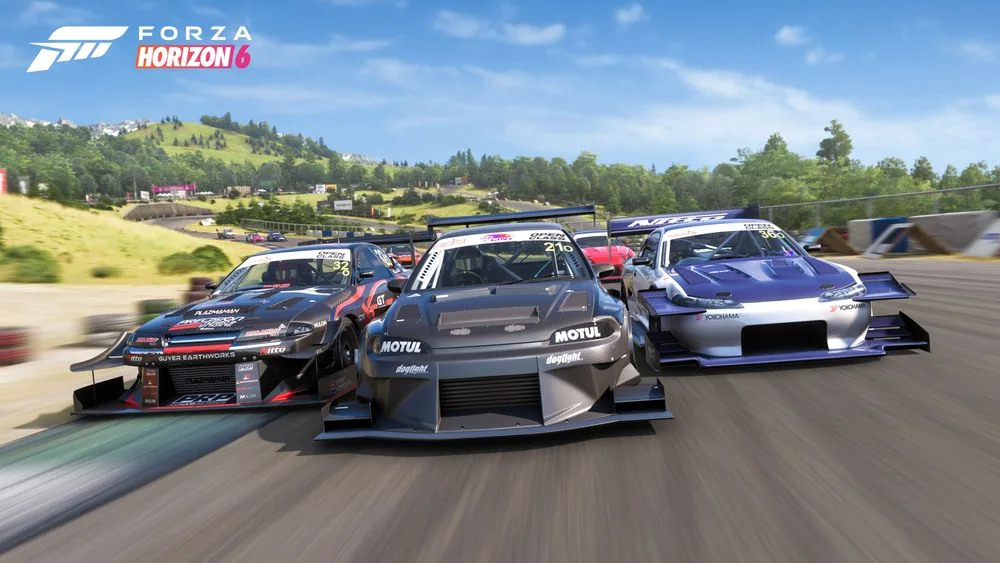
FH6 Premium Upgrade is available on Steam and adds Premium extras to an existing Steam copy of Forza Horizon 6. You do not need to buy the complete Premium Edition again just to upgrade. Before paying, confirm your base-game store and existing DLC; after paying, check the Steam license, installation state and the particular benefit you expect.
This guide covers the upgrade purchase and missing-content checks as of November 9, 2026. It distinguishes an unavailable store link, an unfinished transaction, a registered add-on and a released item that has not appeared in the game.
What the Steam Premium Upgrade includes
The official Steam Premium Upgrade adds a collection of paid extras: VIP Membership, Welcome Pack, Car Pass, the Time Attack and Italian Passion car packs, and the two Premium Expansions. Think of it as an additional content purchase attached to an existing game. It is not a separate installation of a different FH6 campaign.
Premium Edition includes the game; Premium Upgrade does not
Premium Edition is a complete-game product with the Premium extras. Premium Upgrade adds those extras but does not supply the base game. Steam explicitly requires the Steam version of FH6 to use this upgrade. If you can see the add-on in your account but cannot install the main game, establish how you own the main game before trying to repair anything.
This distinction also changes the buying decision for an existing Deluxe owner. Some benefits overlap with what that edition already includes. Make a short list of the extras you actually lack rather than treating every logo on the upgrade page as a new benefit. The checkout offer, not an assumption about the price difference between editions, determines what you will pay.
A useful way to read any bundle is to ask three separate questions: does it supply the game, what additional licenses does it contain, and which of those items can I use today? A single word such as Premium does not answer all three. Keep the exact product name visible while comparing offers, especially when switching between a store page, a community discussion and your library.
An included expansion is not necessarily playable yet
An expansion entitlement is a promise of access when that content releases, not evidence that its map should already be selectable. As checked on November 9, 2026, the current official expansion announcement schedules Expansion 1 for January 21, 2027, including Steam. Do not use a placeholder date in a store list as a more authoritative announcement.
When comparing what you received with what you expected, write down the missing item itself. An unavailable expansion, a released car pack and a VIP benefit need different checks. Describing all three as missing DLC can send you toward a purchase you do not need or a download that is not available yet.
Check your store and existing purchases before paying
Begin with a small inventory of what you own. Record the main game's store, the edition on your original receipt, any separately purchased packs, and the account that bought them. This is more reliable than remembering which edition you intended to purchase months ago. It also makes a later support request much easier to understand.
In Steam, open your account name, choose Account Details, then View purchase history. Find the relevant transaction and compare its product name with the upgrade you are considering. If your access came from a Steam activation key, keep the activation details or seller receipt available as well. A purchase made directly on Steam and a key activated on Steam need different transaction evidence.
Do not treat a store's broad owned label as a complete edition audit. Steam's purchasing FAQ specifically notes that a special edition may appear owned when the account only owns the base version. The transaction or activation record is a better starting point. Conversely, being offered an overlapping bundle does not establish that every item in it is missing.
Keep Steam and Microsoft Store purchases separate
A Microsoft account used inside FH6 and the store account used to buy content serve different purposes. Being recognized as the same player does not automatically provide the same purchases in every shop. Forza identifies the Steam game as a separate product; Microsoft Store or Xbox app access does not supply the Steam base game required by the Steam upgrade.
If you play through the Xbox app or a qualifying Game Pass subscription, pause before buying a Steam add-on. Decide which version you actually want to keep using. Our Steam versus Microsoft Store guide explains that broader choice. Switching launchers is a purchase decision, not a troubleshooting step that should be taken just because an in-game link opened the wrong page.
Also check the account currently signed into the Steam client. A household computer may have more than one user, while a browser may be signed into a different Steam account. Compare the account before changing the game, and keep the Microsoft profile linked to your existing progress intact. Account switching without a clear plan makes it harder to tell whether a missing item is a license problem or simply a different account being used.
How to upgrade FH6 on Steam
Use the store product and your existing library entry as the two ends of the process. There is no reason to start a new campaign just to add Premium content. Work through the purchase and installation checks in order so that, if something fails, you know which step actually failed.
- Confirm the base game and account. Open FH6 in your Steam library, then check that you are signed into the account whose ownership you reviewed. If you only have the Xbox app version, resolve the storefront choice before proceeding.
- Open the exact Premium Upgrade product. Read the full name and the Steam base-game requirement. Avoid substituting a similarly named complete edition or an individual expansion bundle just because it appears first in search.
- Review the current offer. Compare the listed contents with your existing purchases. Inspect the price, currency, account and any ownership messages shown to you. Stop if the offer does not describe what you intended to buy.
- Check the completed transaction. After purchasing, retain the Steam receipt and inspect purchase history. A cart page or an attempted payment is not the same evidence as a completed purchase. If the transaction is pending, investigate that status before trying again.
- Return to the library and inspect DLC. Right-click FH6, choose Properties, then DLC. Check the relevant entries and their installation state using the controls Steam provides. Let required game updates and available downloads finish before launching.
- Launch your existing game and inspect the specific benefit. Check the content you intended to receive, rather than expecting a second FH6 application to appear. If an item is unavailable, continue with the appropriate license, release-date or delivery check below.
Keep the receipt and the first post-purchase observation together. For example, record whether Steam shows the relevant DLC, whether a download is waiting, and whether the game displays an ownership prompt. That short record is more useful than repeatedly reopening the store and trying different purchases. If the upgrade is already registered, the next task is to understand the missing benefit, not to buy the same collection again.
If the Premium Upgrade is missing from the store
First decide what missing means. The product may not appear in a search, an in-game button may open an unhelpful destination, the page may be unavailable to your account, or checkout may reject the transaction. These symptoms look similar when summarized in a forum headline but call for different next steps.
Open the exact product rather than an old search result
The direct Steam Premium Upgrade page was available when checked on November 9, 2026. Older missing-bundle discussions are useful evidence of what players encountered, but they do not establish that the product is currently absent for everyone. Use the product link in this guide and compare the full name with the offer you see in the Steam client.
If an in-game purchase button only returns you to a generic store page, record that behavior and open the exact product separately. You are testing the navigation route, not proving that your game files are damaged. Note whether the direct page loads, whether you are signed in, and whether an ownership or availability message appears. A screenshot of that message is more useful than the statement that Steam is broken.
Identify a checkout problem before changing your installation
If the page is visible but payment fails, follow Steam's purchasing guidance. Valve suggests trying the Steam client when the website fails, or the website when the client fails. Keep the exact error text and check transaction history before making another attempt. A pending payment needs investigation, not a rapid series of duplicate attempts.
Compare your normal store currency and account country with what the page shows. If you have moved or are traveling, use Steam's own country and payment guidance rather than guessing that the game is unavailable worldwide. The relevant question is what offer your account can legitimately complete in its current circumstances.
Changing graphics settings, reinstalling a large game or starting a new save does not address an uncompleted store transaction. Once Steam confirms a completed purchase, move to the content checks below. Until then, the most useful evidence is the product, account, transaction status and precise checkout message.
If you own the upgrade but cannot use the content
Once you have a completed purchase, identify the first place where the evidence stops agreeing. Your receipt, Steam's DLC list and the game's behavior are three separate observations. Keeping them separate helps you explain a genuine entitlement problem without confusing it with unreleased content or a different vehicle variant.
Check the Steam license and DLC settings
Open FH6's Properties in the Steam library and inspect the DLC section. Record the relevant items and whether Steam shows them installed. Valve's DLC management instructions describe the available library routes. Let pending downloads and game updates finish, then close and relaunch the game normally before checking the same item again.
If the receipt exists but the expected content is absent from the account's DLC information, save both observations for Steam Support. If the DLC is present but the game still asks you to buy it, retain that ownership prompt for Forza support as well. Do not assume that an upgrade must appear as a second stand-alone game in the library, or that a single container bundle's store label answers every ownership question.
Match the missing item to its delivery method
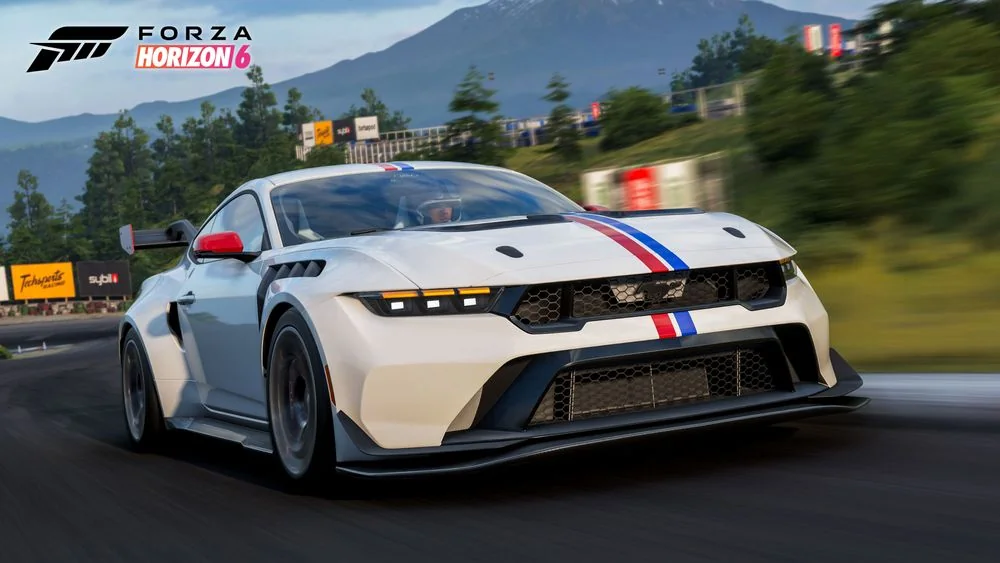
Check the exact model year and variant when a vehicle appears to be missing. A normal car, a specially tuned pack version and a Forza Edition can be different entries. Likewise, a voucher is a benefit to use under its own rules rather than another car you should expect to find automatically by searching the garage.
The current official Car Pass description says new Car Pass vehicles are automatically added to the garage as their Thursday release arrives. That does not make a future scheduled car available early. Check the announced release and the actual garage before attempting a second purchase. If a released car is still absent, check the official manual redemption route before paying again.
Forza Support documents this FH6 claim procedure: pause, open Store, choose Car Packs or Car Pass, then select Redeem Free Cars for available unclaimed vehicles. You can also reach those choices from the Cars tab at a Player House or the Horizon Festival.
The first eligible copy is free through this process; another copy can have an in-game credit cost. Also check whether the garage has reached its capacity, because the official guide says a full garage blocks additions. Identify duplicates or cars you no longer need before making room. Neither a duplicate's credit price nor a full garage automatically means the Steam license is missing.
Separate missing content from a game that will not launch
If FH6 crashes before you can inspect the garage, you have a launch problem in addition to any ownership question. Save the actual error code and use our FH6 PC crash-code guide. Steam's file verification can check an installed game's files; it does not purchase an add-on or turn a Microsoft Store license into a Steam license.
If the content works on one platform but not another, revisit the account and storefront distinction in the cross-play, cross-save and purchases guide. If the failure is an online connection message, capture that message separately. An accurate description of where the failure occurs is more useful than applying every reinstall, network and account workaround to the same session.
Decide whether the upgrade is worth it for you
The right comparison starts with the content you still want, not with the amount you have already spent. A Standard owner who wants several packs has a different decision from a Deluxe owner interested only in one expansion. There is no useful universal verdict without considering those existing licenses and your actual plans for playing.
| Your situation | Useful comparison | What to avoid assuming |
|---|---|---|
| Steam Standard owner | The upgrade versus the individual remaining extras you want. | That Premium extras are required to enjoy the base game. |
| Steam Deluxe owner | The benefits beyond your existing Car Pass and Welcome Pack. | That the whole bundle is new to your account or automatically prorated. |
| Steam Premium owner | Your receipt, included DLC and the exact missing benefit. | That another upgrade purchase is the normal fix for missing content. |
| New Steam buyer | Complete editions versus base game plus add-ons at today's checkout prices. | That buying in separate steps always costs less. |
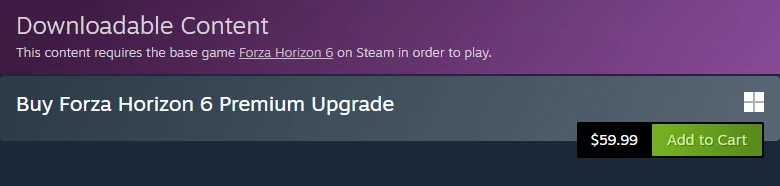
The Steam upgrade page displayed US$59.99 on November 9, 2026. Treat that as a dated US-dollar observation. Your account's currency, current offer and taxes determine the transaction you can actually complete. Check the final cart instead of carrying a price from a screenshot or a launch-week discussion into a different region.
Make a list of the benefits you expect to use in your next few sessions, then a second list of those you want only when future content arrives. This separates immediate value from a longer-term purchase. If your main interest is a specific pack, compare that pack's current standalone offer. If you want the broader collection, check the upgrade's exact contents rather than assuming that every add-on now or later will be included.
Earlier access to the May Steam launch is already in the past for a November buyer. Do not count an expired head start as a new advantage today. Equally, do not dismiss an included future expansion merely because it is not playable yet; decide whether you actually want to commit to it before more details are available.
For price-sensitive players, waiting for a verified offer is a reasonable choice. This guide does not predict the next sale date or discount. A purchase decision remains useful even when the answer is to keep the base game, buy one narrower add-on, or wait for information about the content you care about most.
Get the right help without putting your save at risk
Contact Steam first when the unresolved question concerns a payment, a Steam purchase record or content not registered to the Steam account. Contact Forza for game-side behavior after the expected content is registered, such as a released benefit that still cannot be redeemed. Valve's third-party support page explains how to reach a game's support contact from its Steam library entry.
Prepare a short, reproducible description. State that you are playing the Steam version on PC, name the exact upgrade and missing item, give the purchase date, and describe what Steam and the game each show. Add the game version and the time you last tested. Attach the relevant purchase or activation evidence through the official private support channel, and keep payment information out of public discussion threads.
For an in-game error, pair the screenshot with a short sequence: open this menu, select this item, observe this message. Include the checks you have already tried and their results. Saying that the DLC is present in Steam but a specific game prompt still asks for payment gives support a more precise starting point than saying that nothing works.
Do not delete your local or cloud save, unlink accounts or purchase the same content again merely to see what happens. Those actions introduce additional variables before the original problem is understood. Preserve the receipt, the existing progress and the exact failure state. If support asks for a further diagnostic, follow the instructions for your case and record the outcome so the investigation can continue from evidence rather than another guess.
Comments (0)
Sign in with Google to leave a comment.